
If you read my earlier post — Why Doesn’t My Website Show Up in Google? — you already know there are several factors that influence whether your website appears in Google search results.
But before any of that can work, there’s one foundational step that has to happen first:
Google needs to index your website.
If you’ve ever wondered how to get your website indexed on Google, the good news is that it’s much less intimidating (and technical) than it sounds. A few quick checks can make a big difference in helping Google actually recognize — and show — the beautiful website you’ve worked so hard to create.
Let’s walk through it together — starting with what indexing actually means.
What It Means for Your Website to Be “Indexed”
Imagine you’re staring at the Google Search home page. You type in your query — let’s say, “Portland wedding photographers.”
In a flash, Google returns a ranked list of websites that match that search.
But here’s the key detail most people don’t realize:
Google isn’t pulling from the entire internet — it’s pulling from its own saved database of pages.
And that’s exactly where indexing comes in.
When Google saves your website pages in its search database, that’s called indexing.
Once a page is indexed, Google can show it in search results when couples are looking for wedding professionals like you.
On the flip side, if a page isn’t indexed, it won’t appear in search results… even if it has the most beautiful galleries, compelling copy, and a perfectly designed website.
That’s why checking your indexing status is always one of the first (and simplest) steps in troubleshooting visibility issues.
How to Check Whether Your Website Is Indexed
Option 1: Use the “site:” Search
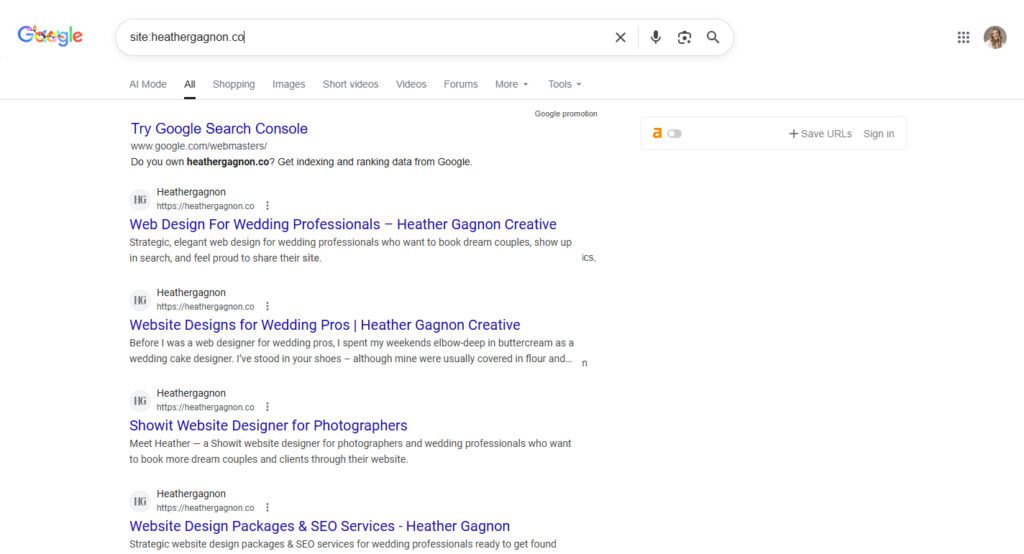
Open a browser window and type: site:yourwebsite.com (replacing “yourwebsite.com” with your website URL).
What you’re looking for:
If you see a list of your pages → your site is indexed! 🎉
If nothing appears → Google hasn’t saved your pages yet.
This gives you a quick overview — but it isn’t as detailed or reliable as using Google Search Console.
Option 2: Check in Google Search Console
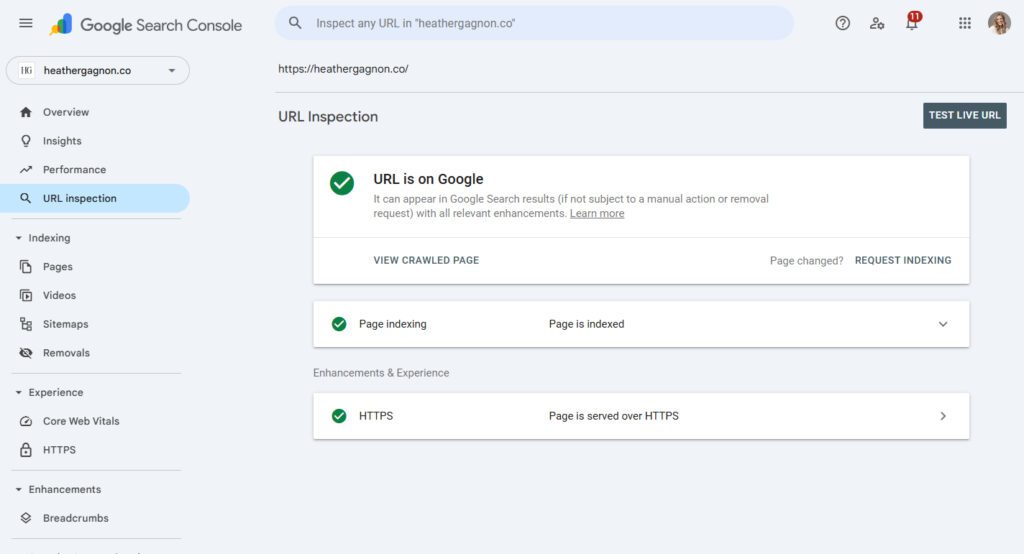
If you haven’t set up Google Search Console yet, I highly recommend doing so! It’s free and gives you the clearest picture of how your website is getting found in Google search.
Inside Google Search Console:
- Click in the URL Inspection Tool (it looks like a search bar at the top)
- Paste your homepage URL
- Google will show you whether that page is “Indexed” or “Not indexed”
- If it’s not indexed, it will explain why (and give you the option to request indexing)
Why Your Website Might Not Be Indexed Yet
You might notice that some pages on your website are indexed, while others aren’t. That’s completely normal, and usually easy to fix.
Common reasons include:
- Your website is new, recently redesigned, or migrated
- Your sitemap hasn’t been submitted
- You recently added a new page Google doesn’t know about yet
- A “noindex” setting is blocking your content
- Your pages don’t have enough helpful text for Google to understand it
All of these issues can be fixed, and we’re about to walk through exactly how. 🫶🏼
But before we move on, one quick note:
Not every page on your website should be indexed — only the ones you want couples to find through search.
Your Home Page, Services pages, About page, Portfolios, and blog posts? Yes.
Your thank you page that appears after someone submits your inquiry form? Nope.
(Psst! Never heard of a “thank you page”? This post walks you through how one simple page can elevate your couple’s experience.)
How to Get Your Website Indexed on Google (step by step)
These are the exact steps I use with my SEO clients to help Google find and save their pages.
1. Submit Your Sitemap in Google Search Console
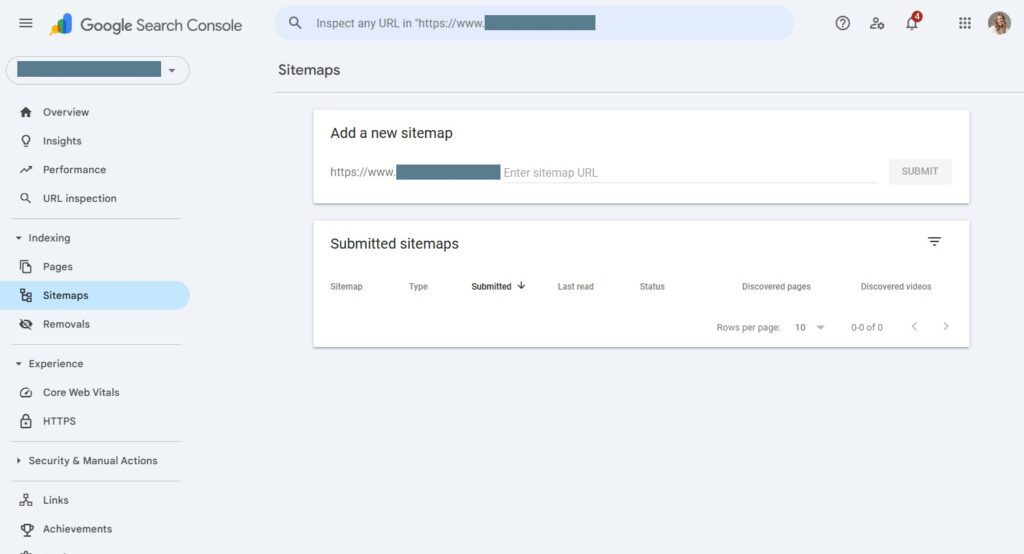
A sitemap is basically what it sounds like — a map of your website that lists all the important pages you want Google to know about.
Submitting your sitemap helps Google:
- discover your website faster
- understand how your pages fit together, and
- avoid missing any of the pages that matter most
Most website builders automatically generate a sitemap at: yourwebsite.com/sitemap.xml
💡 If you’re not sure how to submit your sitemap (or even where to find it), read this simple guide to submitting your sitemap to Google.
2. Request Indexing for Important Pages
After submitting your sitemap, you can request indexing. Think of it as giving Google a little nudge that you have new (or updated) content that you want it to see.
This is especially for:
- Brand new websites
- Pages you recently updated
- Newly published blog posts
- Pages that still aren’t indexed, even after submitting your sitemap
How to request indexing inside Google Search Console:
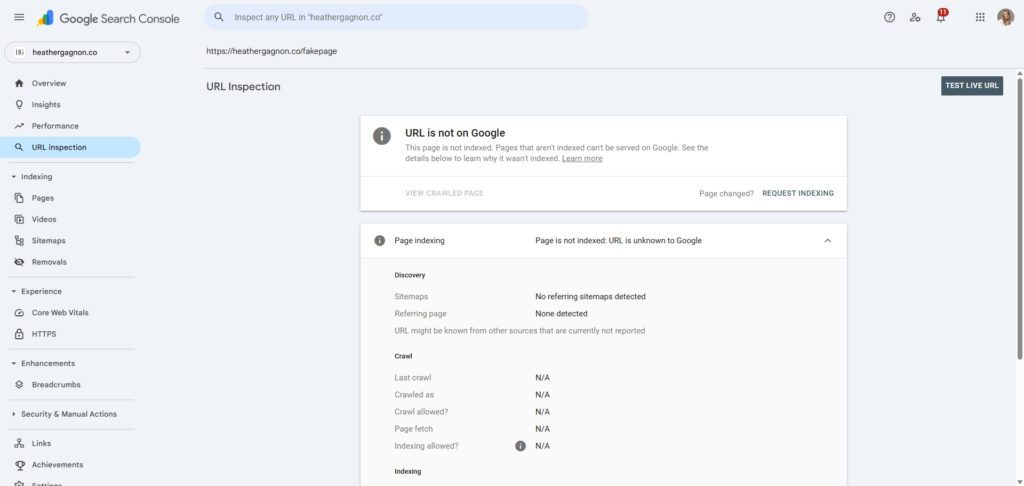
- Open Google Search Console.
- At the top, use the URL Inspection Tool.
- Paste in the URL of your home page (or any page you want indexed).
- Click Request Indexing.
- Repeat for other important pages like Services, About, and key blog posts.
3. Double Check That None of Your Important Pages Are Set to “noindex”
A “noindex” tag tells Google not to save a page — which means it can’t appear in search results.
Make sure that none of your core pages (eg: Home Page, About, Services, Portfolios, etc.) are accidentally marked noindex.
Here’s where to check based on your website builder:
Where to find the noindex setting in Showit:
- Click the page you want to check
- Look in the right-hand panel under Advanced Settings
- Make sure “Ask Google to ignore this page” is NOT selected
Where to find the noindex setting in Squarespace:
- Page → Page Settings → SEO
- Make sure “Hide page from search results” is OFF
Where to find the noindex setting in WordPress:
In WordPress, the noindex setting usually appears in SEO plugins like Yoast or RankMath.
(If you don’t have an SEO plugin installed, skip this step as WordPress will default to indexing your pages.)
Look for:
- “Allow search engines to show this Page in search results?” → Choose Yes
- “Index / Noindex” → Choose Index
- “Robots Meta” → Make sure “noindex” is NOT selected
After You Fixed Indexing: What’s Next?
Once your important pages are successfully indexed, you’ve completed an essential step toward getting found by the right couples in search! 🎉
From here, you can move into:
- Choosing and using strategic keywords
- Improving your on-page SEO
- Building helpful blog content
- Strengthening your local visibility
(If you want a walkthrough of this full process, SEO for Photographers and Wedding Professionals is the perfect next read.)
Want Help Troubleshooting Your Indexing or SEO?
If you’re not sure why your website isn’t showing up in Google, or you just want someone to make sure everything is set up correctly, I’d love to support you with Search Engine Optimization.
Your dream couples are on Google — your website should be, too. 🫶🏼



View comments
+ Leave a comment